

How do I import CONVERGE CFD results and compare them with measurements?
Install the CONVERGE add-in and open the *.out files with
File=>Import Data. UniPlot imports all output files of a simulation folder
in one step and converts them into a UniPlot data file. The simulated channels
then appear in the Data Browser like measured channels, so simulation and test
bench data end up in the same diagram.
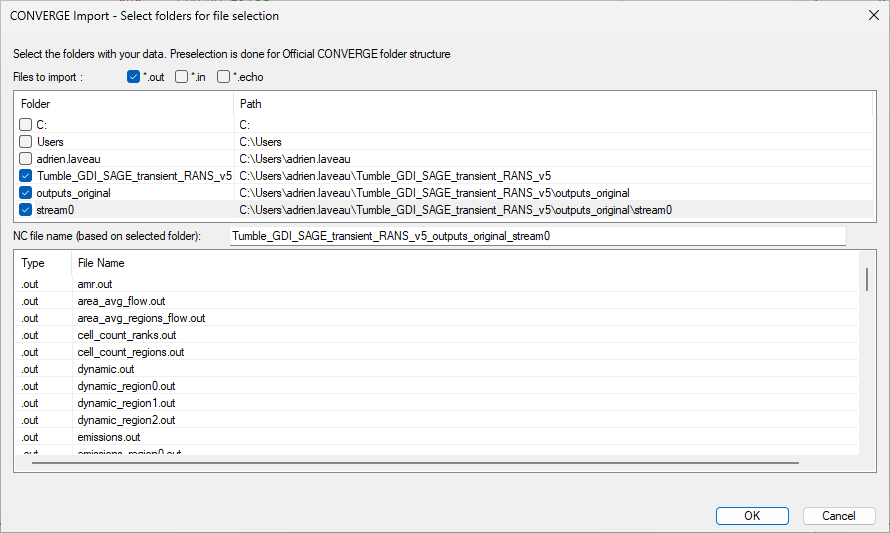
The CONVERGE import window: choose the file types and folders to import.
How it works
Choose Tools=>Add-In Manager and check the add-in CONVERGE CFD import.
Choose File=>Import Data and the file type CONVERGE(*.out;*.in;*.echo).
Go to the output folder of your simulation, select any
*.outfile and click OK.In the import window, choose whether
*.inand*.echofiles are imported as well, select the folders and check the project name. Click OK to start the import.In the Data Browser the channels are grouped by file type and original file name. Drag them into a diagram, next to the measured channels.
Why it helps
Simulation and measurement are compared in one diagram, without exporting and reformatting data.
All output files of a run are imported at once instead of file by file.
After the import, filters, report templates and automation work on CFD results exactly as on measured data.
Good to know
The add-in is part of UniPlot since R2025.3 and is known to work with CONVERGE 3, 4 and 5.
The folder search is not recursive: UniPlot imports the files of the selected folders only.
Working with the
*.outfiles alone is usually enough;*.inand*.echofiles are optional.