

How do I evaluate thousands of measurement files unattended, for example overnight?
Build the evaluation of one file as a Sequencer workflow and let the
Loop option repeat it for every file of a list. Started from a batch file
with the command line parameters /ws, /seq and /rv, UniPlot runs
the workflow without anybody at the computer: it loads each file, exchanges the
data in the report document, exports a PDF and closes at the end. Schedule the
batch file with the Windows task scheduler and the reports are ready in the
morning.
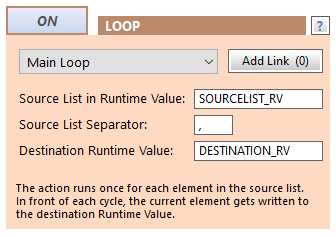
The Loop option runs an action or sub-sequence once for every element of a list.
How it works
Open the Sequencer with View=>Sequencer and create a sub-sequence that evaluates one file: Load Document (the report template), Data Load (path from the Runtime Value
DATAPATH), Data Exchange in the report document and PDF Export with a file name taken from a Runtime Value.In the main sequence, add a Run Sequence action that calls the sub-sequence and switch on its Loop: source list
FILE_LIST, destinationDATAPATH. The sub-sequence now runs once per file.Fill
FILE_LISTwith the files to process. It can be passed on the command line, or created in a Run Script action, for example:Seq_SetRuntimeValue("FILE_LIST", strcat(GetDirectory("D:/Tests/*.csv"), ","));
End the main sequence with a Snippet action set to SHUTDOWN, so UniPlot closes when it is done.
Start it from a batch file.
/automationruns UniPlot without a window:C:\Uniplot\uniplot.exe /ws "D:\Workspaces\COP Evaluation" /seq "COP Main" /rv "DATAPATH = D:\Datafiles\MyFile.csv, MAKE_PDF_EXPORT = 1" /automation
Why it helps
The workflow is built and tested on one file, then runs on any number of files without changes.
Nobody has to wait for the computer: the batch runs at night or whenever the test bench has finished.
The workspace is a normal folder, so the whole evaluation can be copied to another PC or shared with colleagues.
Good to know
A Condition switches an action on or off depending on a Runtime Value, for example to export a PDF only when
MAKE_PDF_EXPORTis 1.With Add Link a second list runs in step with the first one, for example a list of output names. A Runtime Value
<name>_IDXholds the loop number.The Snippet action LOG RVs writes all Runtime Values to the UniPlot log, which helps to find out what happened in a night run.
If you prefer pure UniScript, a
forloop overGetDirectory()withauto_ImportData(),auto_LoadDataset()andDocPrintPDF()does the same, see How do I compare the same channel from hundreds of measurement files?.